How To Fix PS5 No Sound Issue
The PlayStation 5 (PS5), a gaming console launched in 2020, has been a source of both excitement and frustration for gamers worldwide. Despite its cutting-edge technology, users have encountered various issues affecting gameplay, and one of the most prevalent is the PS5 no sound bug. Imagine immersing yourself in a gaming session only to find that there’s no audio feedback from your console—frustrating, to say the least.
Understanding the Problem
Before delving into the solutions, it’s essential to understand why the PS5 might not be producing any sound. Several factors could contribute to this issue:
- System Error: Technical glitches within the console’s software or hardware.
- Incorrect TV Input: The TV might not be set to the correct input source.
- HDMI Cable Issues: A bent, damaged, or faulty HDMI cable.
- Dusty or Faulty HDMI Port: The HDMI port on the console might be obstructed or malfunctioning.
- TV HDMI Port Problems: Issues with the HDMI port on the TV.
- Physical Damage: Any physical damage to the console affecting its functionality.
- Excessive Device Connections: Too many devices connected to the TV or console.
- Incorrect Audio Settings: For instance, enabling 3D audio mode without a compatible device.
7 Fixes to Restore PS5 Sound
If you’re facing the dreaded PS5 no sound issue, fret not! Here are seven troubleshooting solutions to help you get back to your immersive gaming experience:
1. Unmute the System
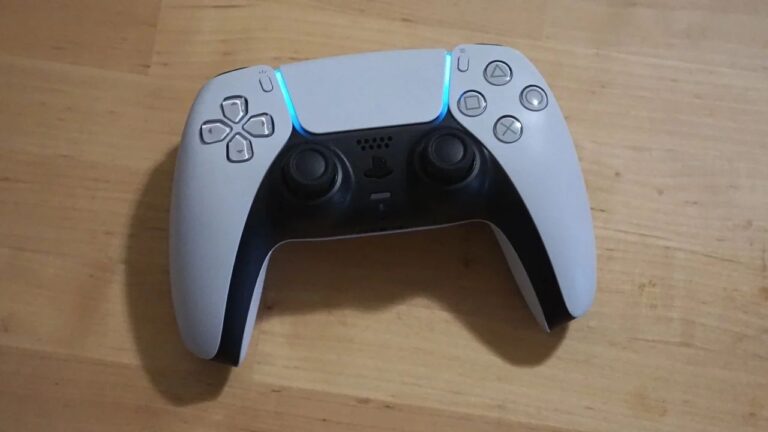
Sometimes, the simplest solution is the most effective. Check if the mute button on your PS5 controller is activated (yellow or orange). If it is, press it again to restore sound.
2. Disable 3D Audio Mode
If you’ve enabled 3D audio mode but don’t have a compatible headset or game, it might cause the sound to disappear. Disable 3D audio mode by navigating to “Settings” > “Sound” > “Audio Output” and turning off the “Enable 3D Audio” function.
3. Check TV Output
Ensure that your TV isn’t muted. If it is, unmute it to restore sound while playing on your PS5.
4. Inspect HDMI Port and Cable
Faulty HDMI ports or cables could be the culprit. Test different HDMI ports on your TV or try using a different HDMI cable to rule out any connectivity issues.
5. Use Standard HDMI Mode
Switching from Enhanced HDMI Mode to Standard on your TV might resolve the no sound issue for some users. Experiment with different HDMI modes to see if it makes a difference.
6. Adjust Sound Settings on PS5
Navigate to “Settings” > “Sound” > “Audio Output” on your PS5 and select your TV or speakers as the default audio output device. Additionally, enabling Dolby Sound and setting Dolby Digital as the priority audio format could potentially fix the problem.
7. Install System Software Updates
Ensure your PS5 is running the latest system software. Updates often include bug fixes and improvements that could address the no sound issue.
Useful User Experiences
Experience #1
I solved this problem by restarting TV. Just hold power button and restart your TV
Experience #2
I’ve found that my PS5 when turned on starts with no sound, a restart always resolves this issue
Experience #3
After reading these messages and looking at Sony’s help page. Nothing worked at all other then unplugging tv for 10 secs then plugging back In.
Experience #4
Try to use Enhanced Format (Dolby Vision) which means no 4K120 because for some reason you can’t have 4K120 AND Dolby Vision.
Experience #5
I saw that some people had to unplug their TV to get sound back. Tried that and it worked!
Experience #6
Had to change HDMI port to get it to work
Experience #7
I have my Astros a50’s optical cord plugged into the back of my TV so the ps5 defaults to headset not the TV. To fix it just go to the ps5 settings > sound> audio output> output device >HDMI Device(TV)
Experience #8
Pressed the mute button on the controller and the sound came back.
Experience #9
Restarting the PS5 brings the sound back
Experience #10
I just press the mute button a few times then sound is back. Once I clicked on the switcher function thinking that may have fixed it also but I had the same issue again yesterday and mute worked for me.
Experience #11
Just had this issue and i found a super fast solution. Hold the green power button on the remote and when prompted hit restart
Experience #12
I did a “hard” reset of tv and everything started to work again
Experience #13
I got a quick fix by reinstalling my tv through its settings.
Experience #14
I held down remote power button for TV and it did some kind of soft reset. Sound is back!
Experience #15
I turned off Dolby Atmos and back on, then long press off the TV and it seemed to kick back in.
Experience #16
What worked for ME, was I went into sound settings, Audio Output, Audio Format. It was on Linear PCM. I switched to Dolby, and that did NOT work. I switched to DTS, and that did NOT work. Then I switched back to Linear PCM….. and that worked!
So if nothing else is working, you could try what I wrote above.
Conclusion
The PS5 no sound issue can be frustrating, but with these troubleshooting solutions, you can hopefully resolve it and get back to enjoying your gaming experience. Remember to check each potential fix systematically to identify the underlying cause and restore audio functionality to your console. Happy gaming!