How To Fix PS5 Not Connecting To TV
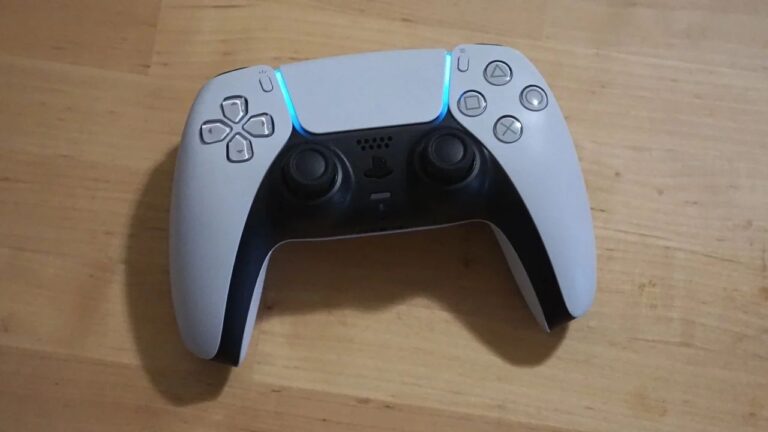
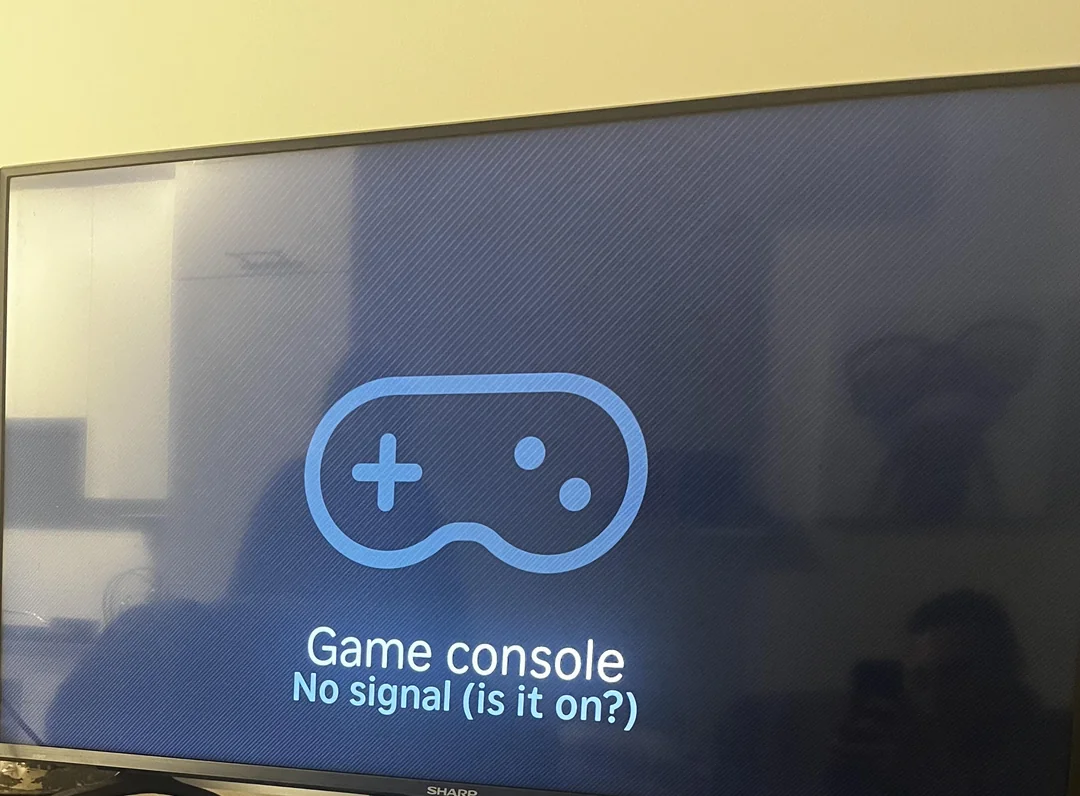
One common issue that some users encounter is the inability to connect their PS5 to their TV. This problem can arise due to various factors, including incorrect HDMI cable connections, incompatible display settings, or issues with the TV’s HDMI ports. When the PS5 fails to connect to the TV, users are unable to enjoy their gaming experience, resulting in frustration and disappointment.
The inability to connect the PS5 to a TV deprives users of the opportunity to play their favorite games on a larger screen. This limitation can significantly impact their overall gaming experience, as they are forced to rely on the smaller screen of the PS5’s DualSense controller or resort to alternative entertainment options. Moreover, users may miss out on the immersive gameplay and visual fidelity that the PS5 offers when played on a large TV screen. This issue can lead to dissatisfaction among users, hindering their ability to fully enjoy the capabilities of their PS5 console.
Common Causes
There are several common causes for a PS5 not connecting to a TV:
- HDMI cable issues: A faulty or damaged HDMI cable is often the culprit. Using an older cable that doesn’t support the PS5’s capabilities can also cause problems.
- Incorrect HDMI port: Ensure the PS5 is connected to the correct HDMI port on the TV, and that the TV is set to the correct input source.
- HDCP incompatibility: HDCP (High-bandwidth Digital Content Protection) is a form of copy protection, and incompatibility between the PS5 and TV can prevent a connection.
- Incorrect display settings: The PS5’s video output settings might be incompatible with the TV’s resolution or refresh rate.
- PS5 or TV software issues: Outdated firmware on either the PS5 or the TV can lead to connectivity problems.
- Hardware problems: In rare cases, there might be a problem with the HDMI port on the PS5 or the TV itself.
Troubleshooting these potential causes can help users resolve the connectivity issue and enjoy their PS5 gaming experience.
Common Solutions:
1. Check the Basics:
- Power cycle everything: Turn off your PS5 and TV, unplug them both, wait a few minutes, and then plug them back in.
- HDMI cable: Try a different HDMI cable, preferably a high-speed one that’s certified for HDMI 2.1 (if your TV supports it). Make sure it’s securely plugged into both the PS5 and the TV.
- HDMI port: Try a different HDMI port on your TV. Some TVs have specific ports for higher resolutions or gaming.
- Input source: Ensure your TV is set to the correct HDMI input source.
2. Adjust Settings:
- PS5 video output: Go to “Settings” > “Screen and Video” > “Video Output” on your PS5. Try changing the resolution, refresh rate, or HDR settings to match your TV’s capabilities.
- HDCP: In the same “Video Output” settings, try setting “HDCP” to “1.4 Only.” This might resolve compatibility issues with older TVs.
- TV settings: Check your TV’s settings for any options related to HDMI, HDCP, or game mode. Enabling game mode can sometimes improve performance and compatibility.
3. Software Updates:
- PS5 system software: Make sure your PS5 is running the latest system software. Go to “Settings” > “System” > “System Software” > “System Software Update and Settings.”
- TV firmware: Check your TV manufacturer’s website for firmware updates. Outdated firmware can sometimes cause compatibility issues.
4. Advanced Troubleshooting:
- Safe Mode: If the above steps don’t work, try starting your PS5 in Safe Mode. This allows you to change video output settings or rebuild the database, which can sometimes resolve software glitches.
- Contact Support: If you suspect a hardware issue or can’t resolve the problem yourself, contact PlayStation support or your TV manufacturer for assistance.
By systematically checking these solutions, you can increase the chances of resolving the PS5 connection issue and get back to gaming.
Share Your Experience
Have you faced this issue before and managed to resolve it successfully? Please comment below and share your experience with fellow gamers to help them overcome this problem completely.
Useful User Experiences
Learn from the experiences of real PS5 users who have encountered this issue and successfully resolved it.
Experience #01
I was pulling my hair out! My PS5 wouldn’t show up on my TV, no matter what I did. I tried different HDMI ports, restarted everything, nothing. Finally, I remembered I had a spare HDMI cable lying around. Swapped it out, and boom! Picture perfect. Turns out my old cable was the problem all along.
Experience #02
I spent hours messing with my PS5 settings, convinced it was the problem. Then, I stumbled upon a thread online about a hidden setting on some TVs. Sure enough, my TV had an “Enhanced HDMI” mode that needed to be enabled for the specific port I was using. Flipped that switch, and my PS5 appeared instantly.
Experience #03
I was ready to give up and call Sony. But then someone on Reddit mentioned Safe Mode. I had no idea what it was, but I followed the instructions, booted my PS5 in Safe Mode, and changed the resolution to 1080p. That did the trick! I was then able to adjust the settings to what I wanted.
Experience #04
My brand new PS5 wouldn’t work with my older TV. I was so frustrated. After some searching online, I found out that my TV’s firmware was outdated. Downloaded the latest update from the manufacturer’s website, installed it, and voila! PS5 connected without a hitch.
Experience #05
I kept getting HDCP error messages, and I had no clue what they meant. After some Googling, I learned about HDCP compatibility issues. I went into my PS5’s video output settings and changed the HDCP setting to “1.4 Only.” Problem solved!
Experience #06
This one was a weird one. I had my PS5 connected to my soundbar, which was then connected to the TV. Turns out, this was causing some kind of conflict. I connected the PS5 directly to the TV and then connected the soundbar separately, and the display issue vanished.
Experience #07
I tried everything I could think of, but nothing worked. As a last resort, I did a factory reset on my PS5. It was a pain to set everything up again, but it finally solved the connection problem.
Experience #08
After exhausting all other options, I realized the problem was with my TV. One of the HDMI ports was damaged. Luckily, my TV had multiple ports, so I just switched to a different one, and it worked fine.
Experience #09
Sometimes, the simplest solutions are the best. I was about to go down a rabbit hole of troubleshooting, but I decided to try power cycling everything first. Unplugged both my PS5 and TV, waited a few minutes, plugged them back in, and it worked!
Experience #10
I was getting no signal on my TV, and I was panicking. But then I remembered reading somewhere that sometimes it takes a few minutes for the PS5 to establish a connection. So I waited, and sure enough, after a couple of minutes, the PS5 logo appeared on the screen.