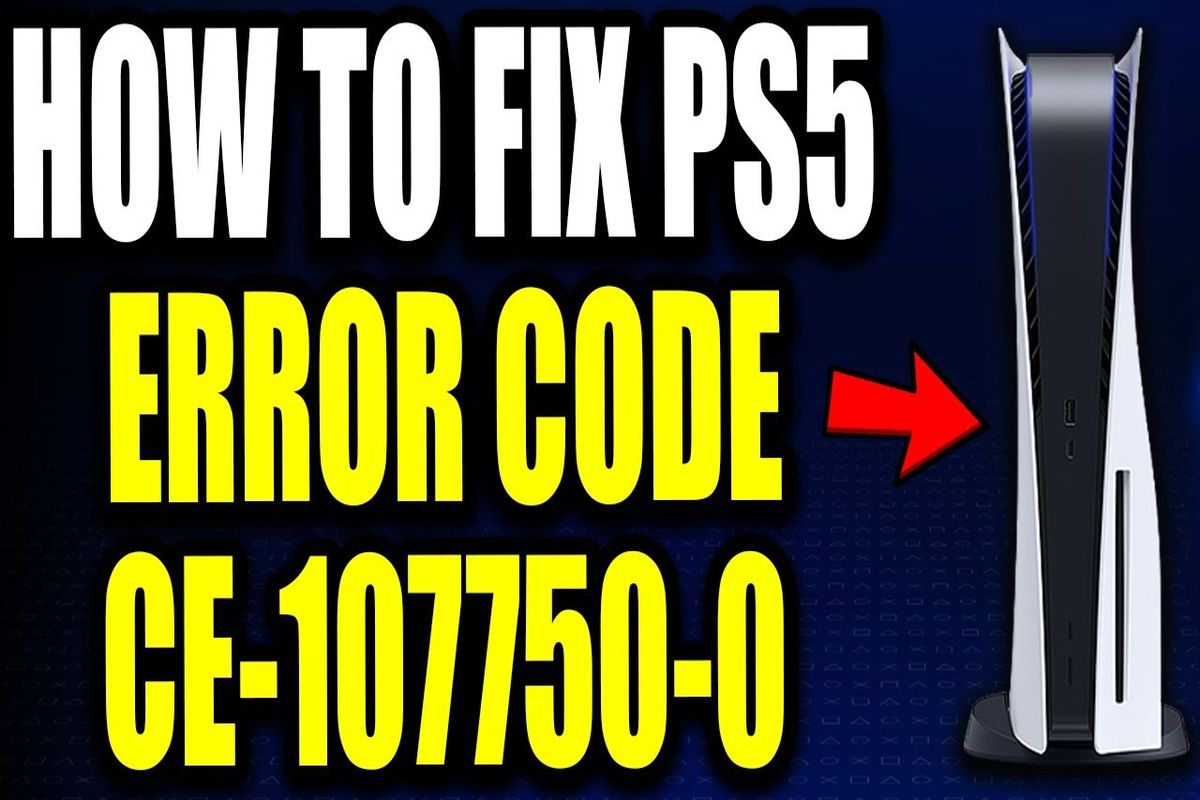
Understanding & Fixing PS5 Error Code (CE-107750-0)
The PS5, like any other electronic device, is susceptible to experiencing errors and glitches that can impact its performance and overall functionality. Despite its advanced technology and cutting-edge features, occasional issues may arise that disrupt the smooth operation of the console. One specific error that users have encountered is the PS5 Error Code (CE-107750-0), which has been reported across different online platforms.
When users encounter the PS5 Error Code (CE-107750-0), it indicates that there is a problem with the console’s system storage or data. This error can manifest in various ways, such as game crashes, freezing, or difficulty accessing certain features or content on the PS5. It can be a frustrating experience for gamers, as it disrupts their gaming sessions and prevents them from fully enjoying the console’s capabilities.
While the exact causes of this error can vary, they often involve issues with the console’s internal storage or corrupted data. It may occur due to a faulty installation or update process, software conflicts, or even physical damage to the storage drive. In some cases, network connectivity issues or server problems can also contribute to the occurrence of this error.
PS5 Error Code (CE-107750-0) Meaning
The PS5 Error Code (CE-107750-0) means that “a system error has occurred”. This error may prevent the user from launching or playing certain games, especially PS4 digital games, on their PS5 console. The error may also cause the PS5 games to crash and display a message that the save file is corrupted.
The Consequences Of PS5 Error Code (CE-107750-0)
The PS5 Error Code (CE-107750-0) can have various negative consequences for users, leading to a range of frustrations and disappointments. Some of these consequences include:
- Losing progress or data in affected games: When encountering this error, users may experience game crashes or freezing, potentially resulting in the loss of progress or unsaved data. This can be particularly frustrating for gamers who have invested time and effort into completing certain levels, achieving milestones, or unlocking in-game rewards.
- Inability to access or enjoy purchased games: The error can prevent users from accessing specific games or features on their PS5. This means they may be unable to play games they have purchased or access additional content such as downloadable content (DLC) or online multiplayer modes. It can significantly hinder their gaming experience and limit their enjoyment of the console.
- Repeated reinstallation or updates: In some cases, users may need to repeatedly reinstall or update games affected by the error in an attempt to resolve the issue. This process can be time-consuming, requiring large game downloads or lengthy update installations. It can also consume significant bandwidth, especially for users with limited or metered internet connections.
- Wasting time and bandwidth on troubleshooting: Troubleshooting the PS5 Error Code (CE-107750-0) can be a tedious and time-consuming process. Users may need to navigate through various troubleshooting steps, such as restarting the console, rebuilding the database, or performing a factory reset. These attempts to fix the error can consume valuable gaming time and cause frustration, especially if they don’t yield immediate results.
While the PS5 Error Code (CE-107750-0) can have these negative consequences, it’s important to note that Sony and game developers are actively working to address and minimize such errors.
Causes of PS5 Error Code (CE-107750-0)
The exact causes of the PS5 Error Code (CE-107750-0) are not clear, but some possible factors that may contribute to it are:
| Factor | Explanation |
|---|---|
| Outdated system software | The PS5 system software is the operating system that runs the console and its features. It may contain bugs or compatibility issues that need to be fixed by Sony through updates. If the user does not update their system software to the latest version, they may encounter errors or problems with some games or functions. |
| Corrupted game data | The game data is the information that is stored on the console or an external storage device, such as a USB drive, that contains the game files, settings, patches and saves. The game data may get corrupted due to various reasons, such as power outages, improper installation or removal, faulty hardware or software, etc. Corrupted game data may cause errors or crashes when trying to launch or play the game. |
| External storage device | Some users may use an external storage device, such as a USB drive or an external hard drive, to store or play their games on the PS5. However, some external storage devices may not be compatible with the PS5 or may have issues with formatting, connection, speed or capacity. These issues may affect the performance or functionality of the games stored or played on them and may cause errors or problems. |
How To Fix PS5 Error Code (CE-107750-0)
There are several possible solutions that may help fix the PS5 Error Code (CE-107750-0), depending on the cause and severity of the problem. Some of these solutions are:
| Solution | Steps |
|---|---|
| Restart the PS5 console |
|
| Update the system software |
|
| Rebuild database |
|
| Delete and reinstall game data |
|
| Check external storage device |
|
Conclusion
The PS5 Error Code (CE-107750-0) is a system error that may prevent the user from launching or playing certain games, especially PS4 digital games, on their PS5 console. The error may also cause the PS5 games to crash and display a message that the save file is corrupted. The error may have various causes, such as outdated system software, corrupted game data or external storage device issues. The error may have various solutions, such as restarting the PS5 console, updating the system software, rebuilding database, deleting and reinstalling game data or checking external storage device. The user may try these solutions in order to fix the error and enjoy their games on the PS5 console.


![Best SSDs for PS5 Recommended by Gaming Experts [2026]](https://www.gaming.ac/wp-content/uploads/2025/06/best-ssd-for-ps5-768x522.png)

