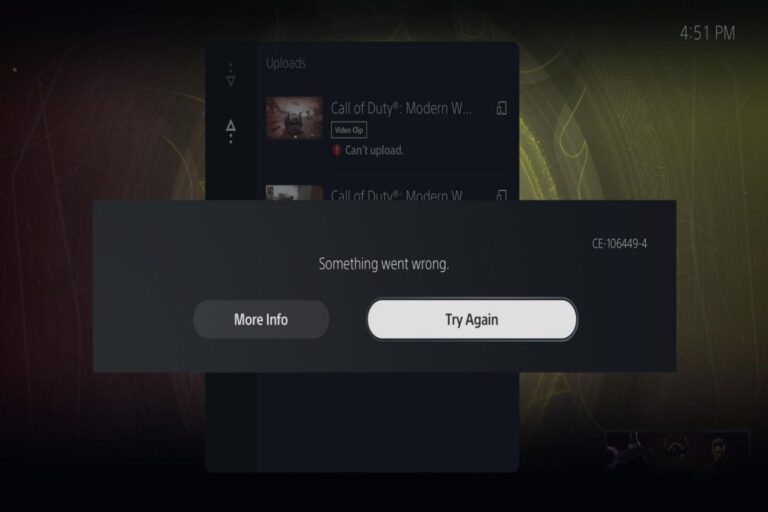
Understanding & Fixing PS5 Error Code (NW-102265-6)
Like any other device, the PS5 may also encounter some issues and errors that can affect its performance and functionality. One of these errors is the PS5 Error Code (NW-102265-6), which prevents the console from connecting to the server or the PlayStation Network (PSN).
PS5 Error Code (NW-102265-6) Meaning
The PS5 Error Code (NW-102265-6) means that the console is unable to connect to the server or the PSN. This error usually occurs when trying to download or update games or apps, access online features or services, or sign in to the PSN account. The error message may say something like “Unable to connect to the server.” or “The connection to the network has timed out.”
The Consequences Of PS5 Error Code (NW-102265-6)
The PS5 Error Code (NW-102265-6) can have several negative consequences for the user, such as:
- Inability to download or update games or apps
- Inability to access online features or services, such as multiplayer, streaming, cloud storage, etc.
- Inability to sign in to the PSN account or use its benefits, such as trophies, friends list, messages, etc.
- Inability to use other devices or apps that require a connection to the PSN, such as PlayStation App, PlayStation Now, PlayStation Plus, etc.
- Frustration and disappointment with the console and its performance
Causes of PS5 Error Code (NW-102265-6)
The PS5 Error Code (NW-102265-6) can be caused by various factors, such as:
- Network issues: The most common cause of this error is a problem with the network connection, such as low signal strength, interference, congestion, outage, etc. This can affect the quality and stability of the connection between the console and the server or the PSN.
- Server issues: Another possible cause of this error is a problem with the server or the PSN itself, such as maintenance, overload, outage, etc. This can prevent the console from communicating with the server or the PSN properly.
- System issues: A less likely cause of this error is a problem with the console’s system software or settings, such as outdated firmware, corrupted data, incorrect configuration, etc. This can interfere with the console’s network functionality and performance.
How To Fix PS5 Error Code (NW-102265-6)
Depending on the cause of this error, there are different solutions that can be tried to fix it. Some of these solutions are:
- Check network status: The first step to fix this error is to check the status of the network connection and make sure it is working properly. To do this, go to Settings > Network > Connection Status on the PS5 and check if there are any issues or errors. If there are any problems with the network connection, try to troubleshoot them by following these steps:
- Restart the router or modem by unplugging it for a few minutes and plugging it back in.
- Move the console closer to the router or modem or use a wired connection instead of wireless.
- Avoid using other devices that may interfere with the network signal, such as microwaves, cordless phones, etc.
- Change the network settings on the console by going to Settings > Network > Settings > Set Up Internet Connection and selecting Easy or Custom.
- Test the network connection on the console by going to Settings > Network > Connection Status > Test Internet Connection.
- Check server status: The second step to fix this error is to check the status of the server or the PSN and make sure it is not undergoing maintenance or outage. To do this, visit https://status.playstation.com/ on a web browser and select your region from the drop-down menu. If there are any issues with the server or the PSN, wait until they are resolved before trying to connect again.
- Update system software: The third step to fix this error is to update the system software on the console and make sure it is running on the latest version. To do this, go to Settings > System > System Software > System Software Update and Settings > Update System Software on the PS5 and follow the on-screen instructions. If the console is unable to connect to the server or the PSN to download the update, try to update it manually by using a USB storage device and following these steps:
- Visit https://www.playstation.com/en-us/support/hardware/ps5/system-software/ on a web browser and download the latest update file.
- Format a USB storage device to FAT32 or exFAT and create a folder named PS5 on it.
- Create another folder named UPDATE inside the PS5 folder and copy the update file into it.
- Connect the USB storage device to the console and go to Settings > System > System Software > System Software Update and Settings > Update System Software > Update from USB Storage Device.
- Follow the on-screen instructions to complete the update.
- Rebuild database: The fourth step to fix this error is to rebuild the database on the console and make sure there are no corrupted data or errors. To do this, go to Settings > System > System Software > Console Storage on the PS5 and select Rebuild Database. This will scan and repair the console’s storage and optimize its performance. Note that this may take some time and will not delete any data or settings.
- Restore default settings: The fifth step to fix this error is to restore the default settings on the console and make sure there are no incorrect or conflicting configurations. To do this, go to Settings > System > Reset Options > Restore Default Settings on the PS5 and select Reset. This will reset the console’s settings to their original values, but will not delete any data or games. Note that this may require you to sign in to your PSN account and adjust your settings again.
Conclusion
The PS5 Error Code (NW-102265-6) is a common error that prevents the console from connecting to the server or the PSN. This error can be caused by various factors, such as network issues, server issues, or system issues. To fix this error, there are different solutions that can be tried, such as checking network status, checking server status, updating system software, rebuilding database, or restoring default settings. By following these solutions, you should be able to resolve this error and enjoy your PS5 without any problems.
![The Best Gaming Monitors For PS5 [2024]](https://www.gaming.ac/wp-content/uploads/2024/10/ps5-gaming-monitor-768x576.jpg)